Disable Xpeng G9 ISA Warning Sounds
Permanently silence the annoying speed warning beeps in your Xpeng G9. Get your free, VIN-specific configuration file and restore peaceful driving in minutes.

Illustration only. Your exact model year and trim may differ.
Create Free Account
30 seconds, no credit card
Enter Vehicle Details
We'll guide you through it
Download & Install
Copy to USB and plug in
Already have an account? Sign in to continue
What This Configuration File Does
Our configuration file is a software modification that permanently disables the audio alerts from the Intelligent Speed Assist (ISA) system in your Xpeng G9. Here's exactly what happens when you install it:
- Disables Audio Alerts: The loud beeps, chimes, and "bongs" that trigger when you exceed the speed limit are permanently silenced.
- Preserves Visual Warnings: Visual speed limit indicators and warnings remain fully functional -only the audio alerts are disabled.
- Maintains Safety Systems: All other safety features including lane-keeping assist, emergency braking, and collision warnings continue to work normally.
- USB-Based Solution: The configuration file runs from the USB drive. As long as the USB is plugged in, ISA audio alerts remain silenced. Simply unplug the USB to restore factory behavior -no software changes or resets needed.
- Fully Reversible: To reverse, simply unplug the USB drive. The ISA warning sounds will return immediately. No factory reset or software changes required.
How It Works: Technical Explanation
Modern vehicles like your Xpeng G9 use software-based safety systems. The Intelligent Speed Assist (ISA) system is controlled by configuration files stored in your vehicle's onboard computer system.
Step-by-Step Technical Process
- VIN Analysis: When you enter your Vehicle Identification Number (VIN), our system analyzes the specific configuration parameters for your exact Xpeng G9. The VIN contains encoded information about your vehicle's model year, trim level, and software version.
- Config File Generation: Based on your VIN, we generate a custom configuration file that modifies the ISA system settings. This file contains specific parameters that tell your vehicle's computer to disable audio alerts while maintaining all other safety functions.
- USB Installation: You download the configuration file and copy it to a USB drive formatted as FAT32. When you insert the USB into your Xpeng G9's USB port, the vehicle's system automatically detects and loads the speed chime configuration file. ISA warning sounds are permanently silenced immediately -no prompts needed. The configuration remains active as long as the USB stick is inserted.
- Automatic Application: Your vehicle's onboard computer automatically detects and loads the speed chime configuration file. ISA warning sounds are permanently silenced immediately -no prompts, instructions, or waiting needed. The configuration remains active as long as the USB stick is inserted.
- Verification: After installation, the ISA audio alerts are permanently disabled. Visual warnings and all other safety systems remain fully operational.
Why VIN-Specific Files?
Each vehicle's VIN encodes specific information about its configuration, including software version, model year, and optional equipment. By using your VIN, we ensure the configuration file is perfectly matched to your vehicle's exact specifications, maximizing compatibility and safety.
Safety, Legal, and Warranty Information
Warranty Protection: This modification does not void your vehicle warranty. Software modifications to user-accessible settings are protected under consumer rights laws.
Safety Systems: All active safety features remain fully functional. Only audio alerts are disabled -visual warnings continue to work.
Reversible: Simply unplug the USB drive to restore factory behavior. The ISA warning sounds will return immediately -no reset or software changes needed.
Legal Status: Modifying software settings in your own vehicle is legal in all jurisdictions. You own your vehicle and have the right to modify its software.
EU Regulations: While EU GSR2 regulations require ISA systems, they do not mandate that audio alerts cannot be disabled. Visual warnings satisfy regulatory requirements.
Responsible Use: This modification is intended for drivers who find audio alerts distracting and prefer visual-only warnings.
Common Complaints About Xpeng G9 ISA System
Many Xpeng G9 drivers report intrusive warning sounds from Frequent speed warning beeps that reset every trip; menus are buried or model-year dependent. Beepaway addresses these audio alerts with a single VIN-matched configuration — no need to hunt through separate menus for each warning type.
These complaints are why thousands of Xpeng G9 owners have turned to Beepaway for a permanent solution.
How Xpeng G9 Drivers Search for Speed Warning Solutions
Not every driver calls it "ISA." Some describe the beeps, others hunt for traffic-sign menus, and many just want a quick mute. Below we answer the searches we see most often for the Xpeng G9—in plain language, with what actually works and what stays on for safety.
How do I disable speed limit alerts on my Xpeng G9?
How do I turn off the speed warning chime on my Xpeng G9?
Where are traffic sign recognition settings on my Xpeng G9?
Is there a speed limit assist shortcut for my Xpeng G9?
In-dash settings vs. Beepaway
Your Xpeng G9 may offer partial controls under Driver Assistance, Traffic Sign Recognition, or Speed Limit Assist. Those menus can be buried, model-year dependent, or reset after ignition. Beepaway provides a VIN-matched USB configuration that silences ISA audio alerts while keeping visual speed warnings active. Remove the USB anytime to restore factory chimes.
How to Permanently Disable ISA on Your Xpeng G9
Follow this step-by-step walkthrough to get your free, VIN-matched configuration file from Beepaway and load it onto a USB stick for your Xpeng G9. The entire process takes about 10 minutes and requires no technical skills.
The screenshots below use a BMW as an example because the Beepaway interface looks the same for every ISA-equipped vehicle. On your screen you will select Xpeng and G9 — the buttons, steps, and download flow are identical.
Part 1 — Get your config online
Create a free account, enter your Xpeng G9 details and VIN, then download your personalized .bin file and installation guide.
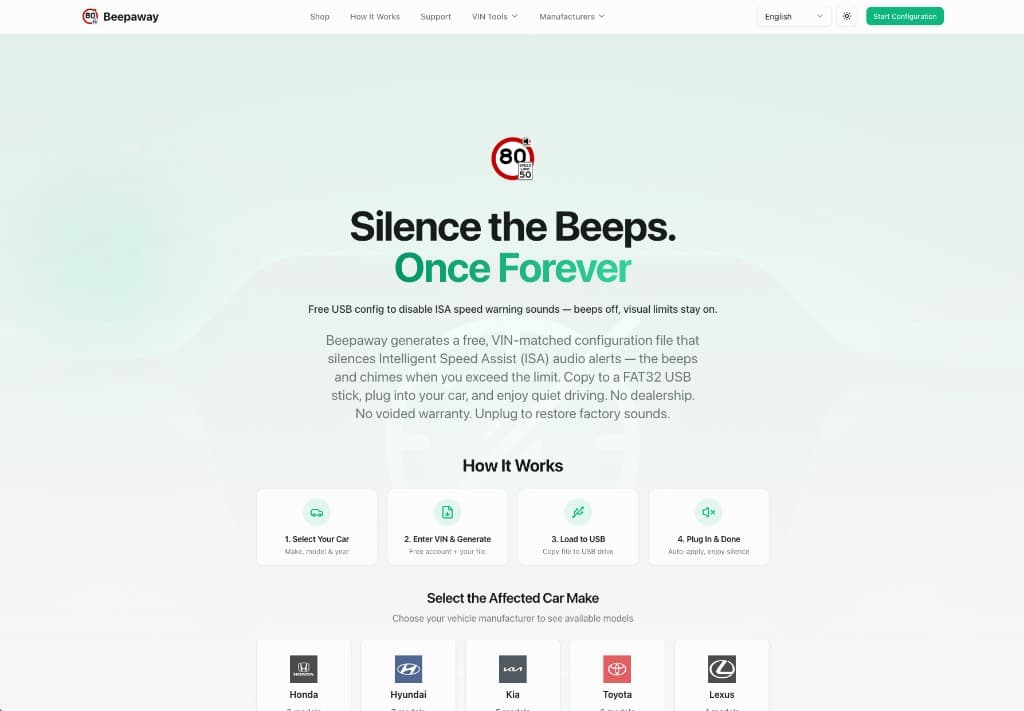
Start at beepaway.com
Open Beepaway and read the overview: we generate a free USB configuration that silences ISA audio alerts while keeping visual speed warnings on your dash. Click Start Configuration or pick your car from the homepage to begin.
Tip: You can browse supported vehicles without an account. Registration is only required when you are ready to generate your file.
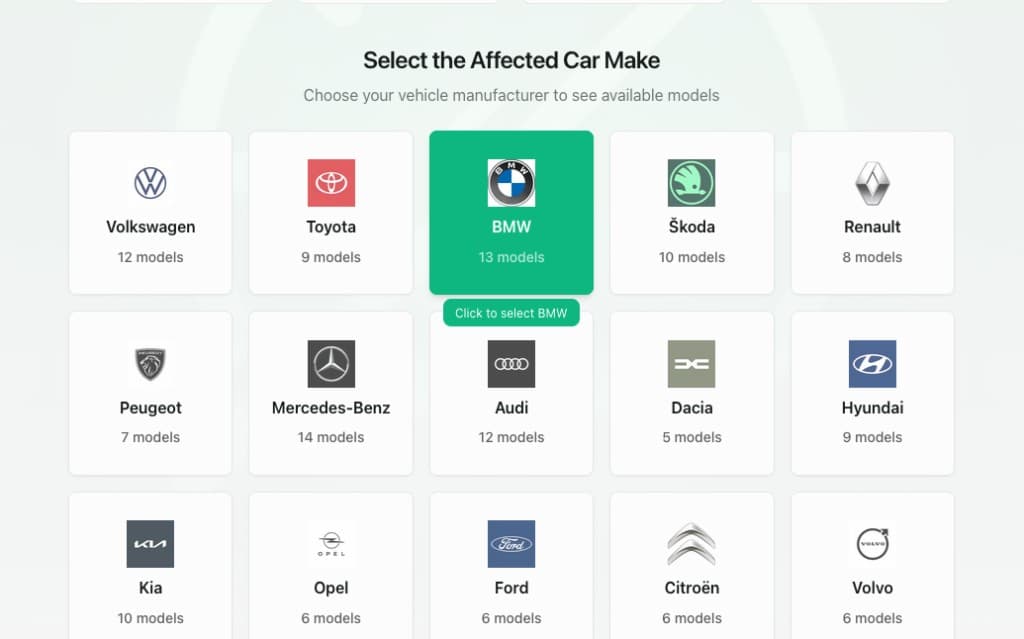
Select your car brand
Choose Xpeng from the manufacturer grid. Every brand with ISA is listed the same way — find yours and click to continue.
Tip: If you arrived from this Xpeng G9 page, your brand may already be pre-selected in the configure wizard.
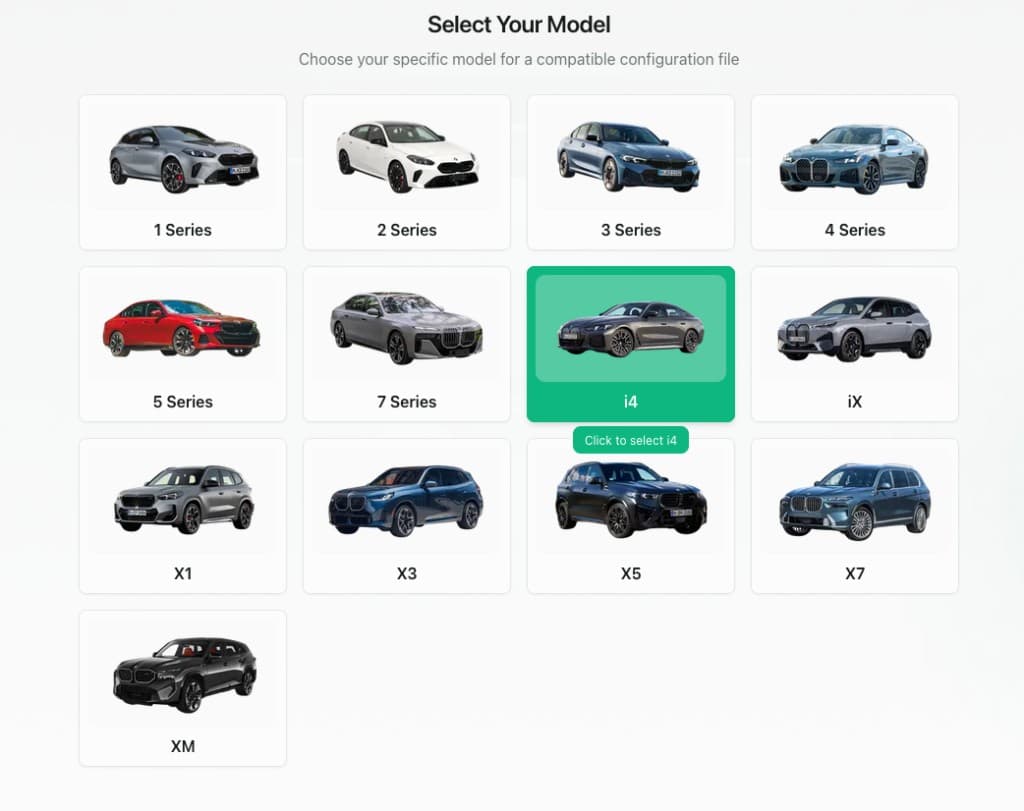
Choose your exact model
Pick G9 from the illustrated model cards. Selecting the correct model ensures Beepaway generates a configuration matched to your vehicle family.
Tip: Model images are representative. Your actual trim and year are confirmed in the next steps via your VIN.
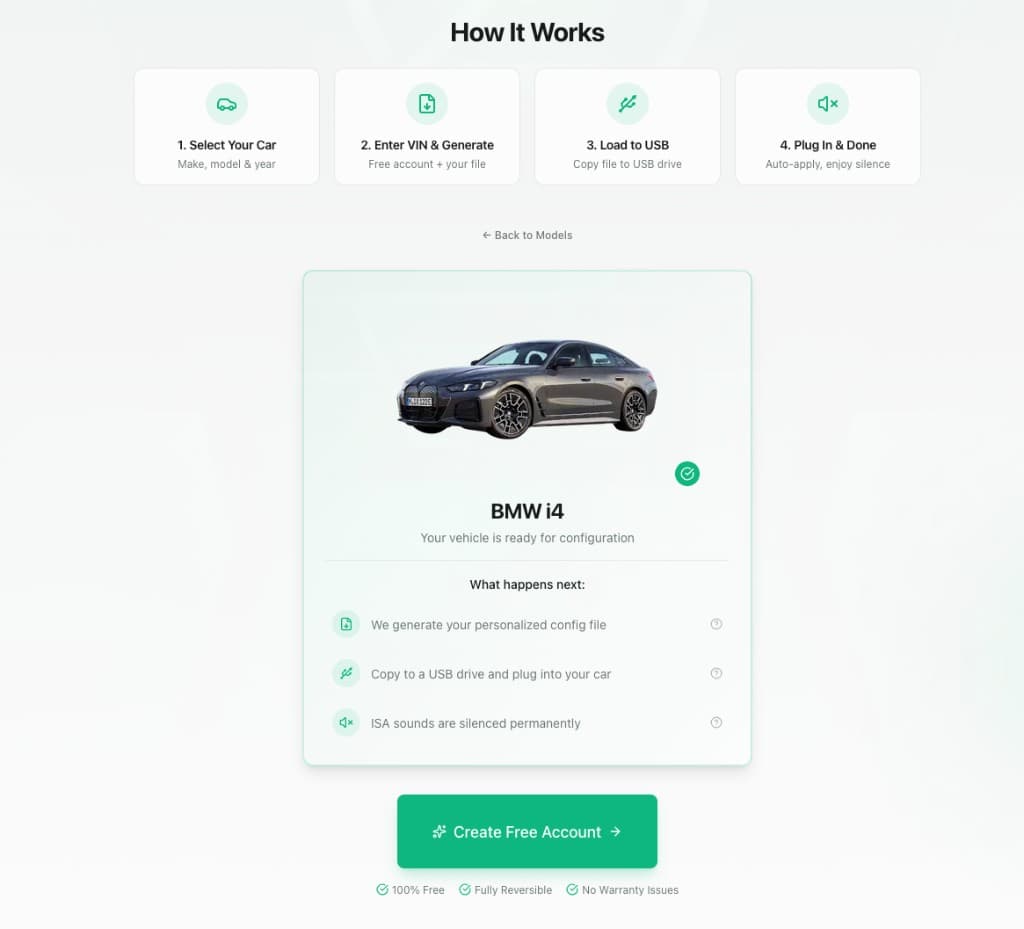
Confirm your vehicle is supported
Beepaway shows a compatibility summary for your Xpeng G9: we will generate a personalized config file, you copy it to USB, plug it in, and ISA warning sounds stay off for every trip while the stick remains inserted.
Tip: The fix is fully reversible — unplug the USB and factory ISA sounds return immediately.
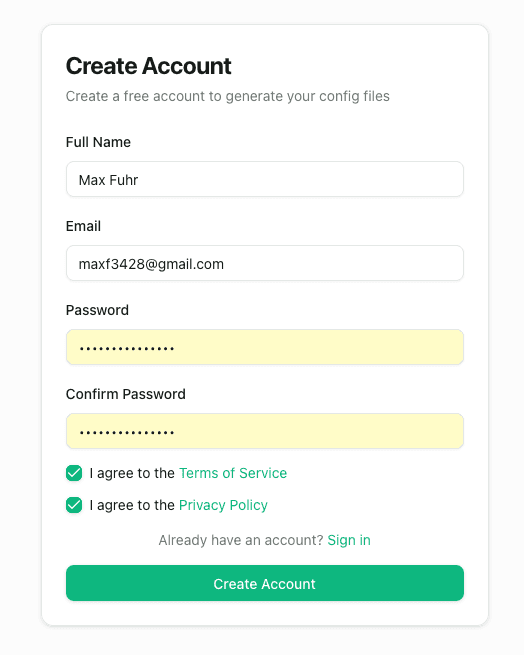
Create your free account
Register with your name, email, and password. Agree to the Terms of Service and Privacy Policy, then click Create Account. No credit card is required.
Tip: Already registered? Use Sign in instead — your progress carries straight into the configure wizard.
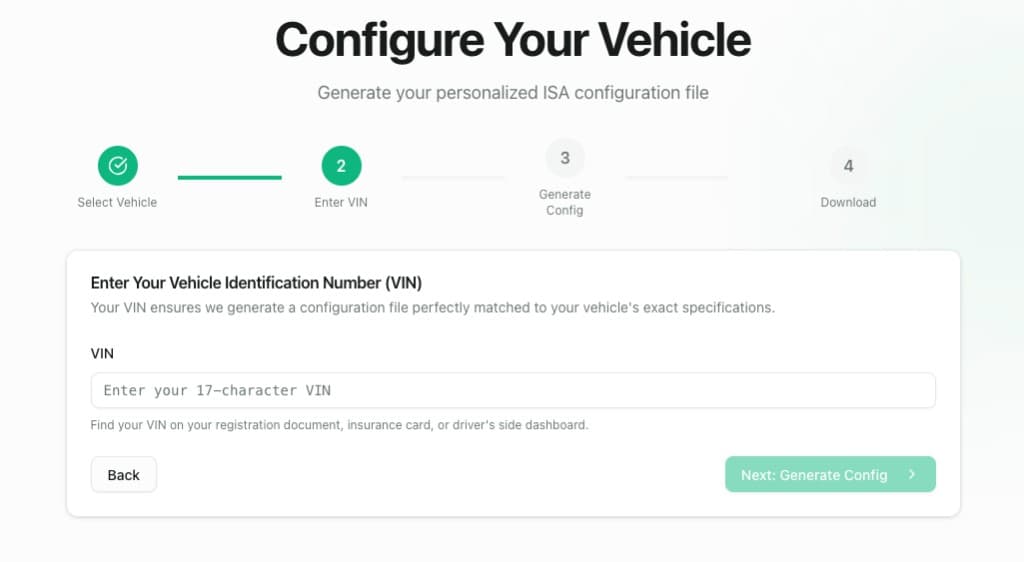
Enter your 17-character VIN
Type the VIN from your registration document, insurance card, or the base of the windshield. Your VIN tells Beepaway the exact software profile for your Xpeng G9 so the config file fits perfectly.
Tip: Find your VIN on the driver-side dashboard (visible through the windshield) or on your vehicle registration papers.
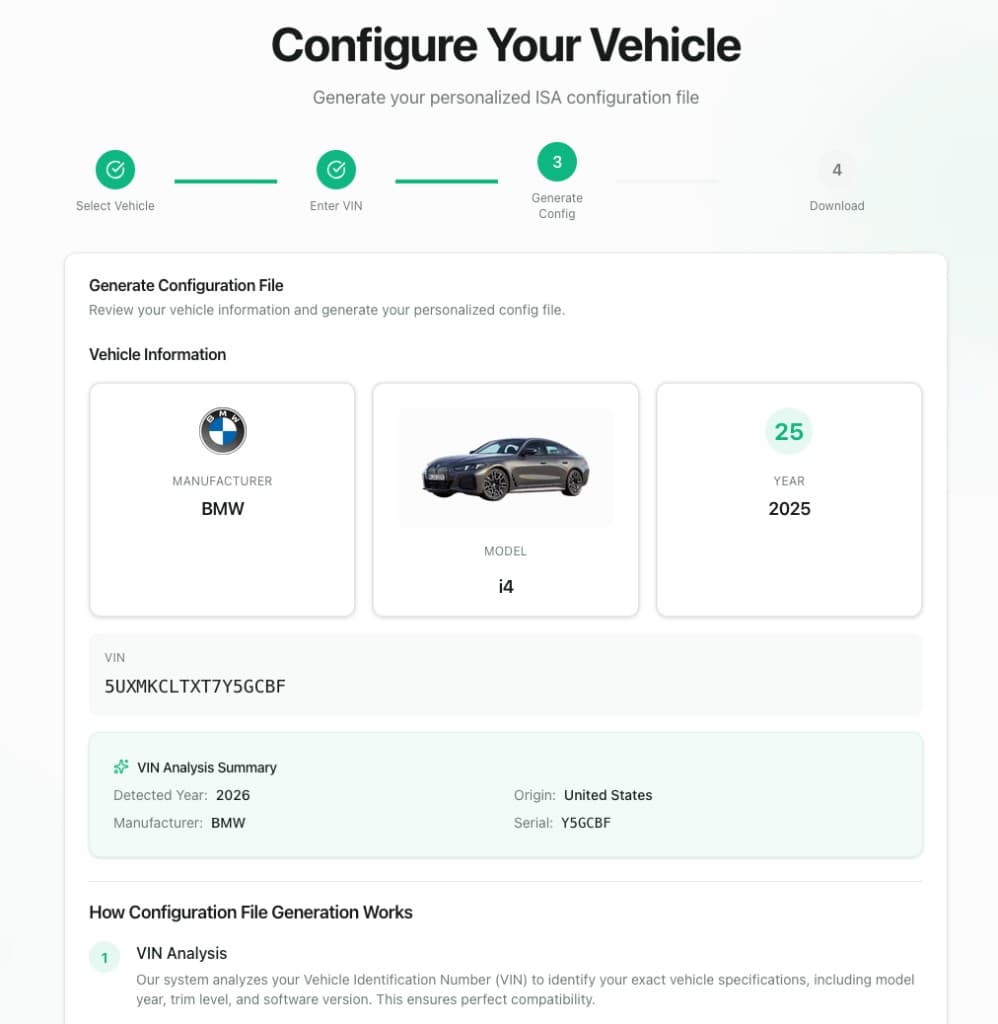
Review your vehicle details
Check that manufacturer, model, year, and VIN are correct. The VIN analysis panel shows detected year, origin, and serial — confirming Beepaway matched your Xpeng G9 before generating the file.
Tip: If anything looks wrong, go back and correct it before generating — the file is built specifically for this VIN.
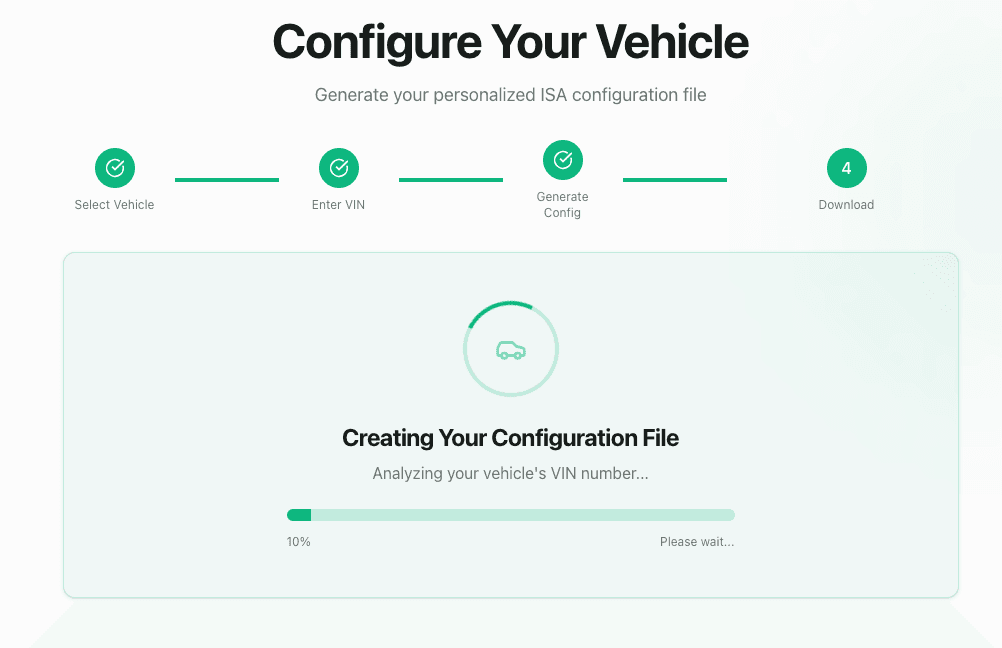
Wait while your config is created
Beepaway analyzes your VIN and builds your personalized ISA configuration file. This usually takes less than a minute — keep the page open until the progress bar completes.
Tip: Do not refresh during generation. You will be redirected to My Configs when the file is ready.
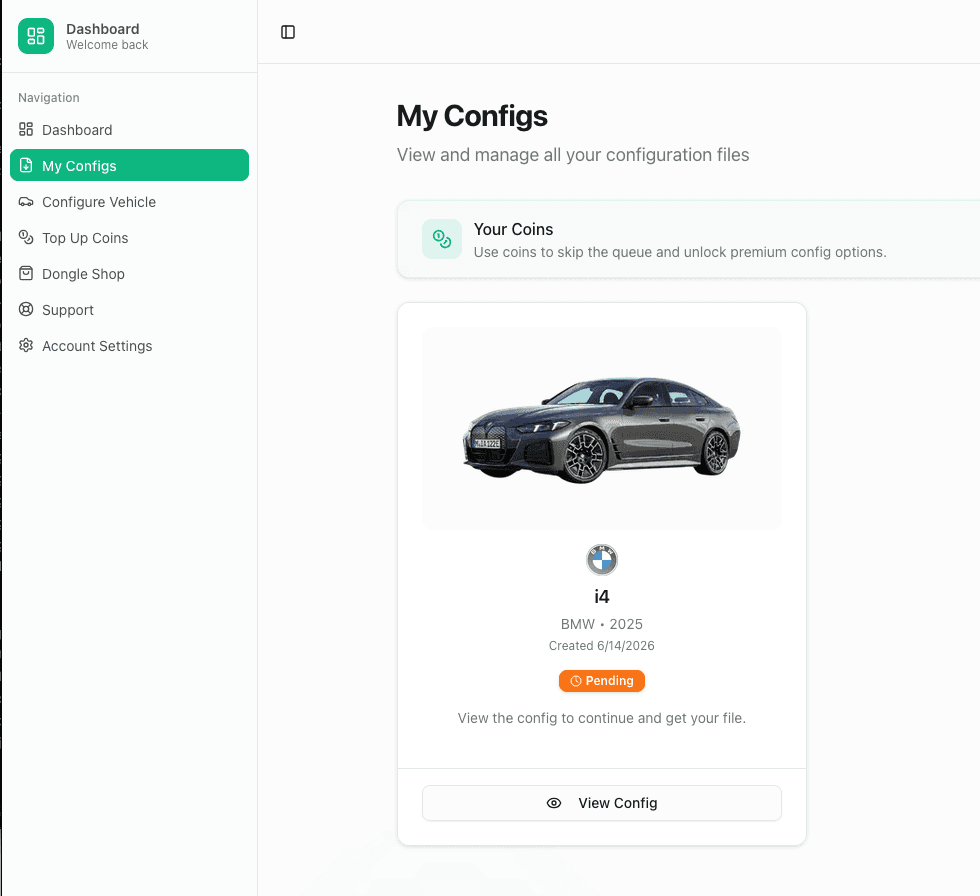
Open your config in My Configs
Your Xpeng G9 configuration appears in My Configs. While it shows Pending, click View Config to open the detail page where your downloads will appear once processing finishes.
Tip: My Configs stores every config you create — you can re-download your .bin file and guide anytime.
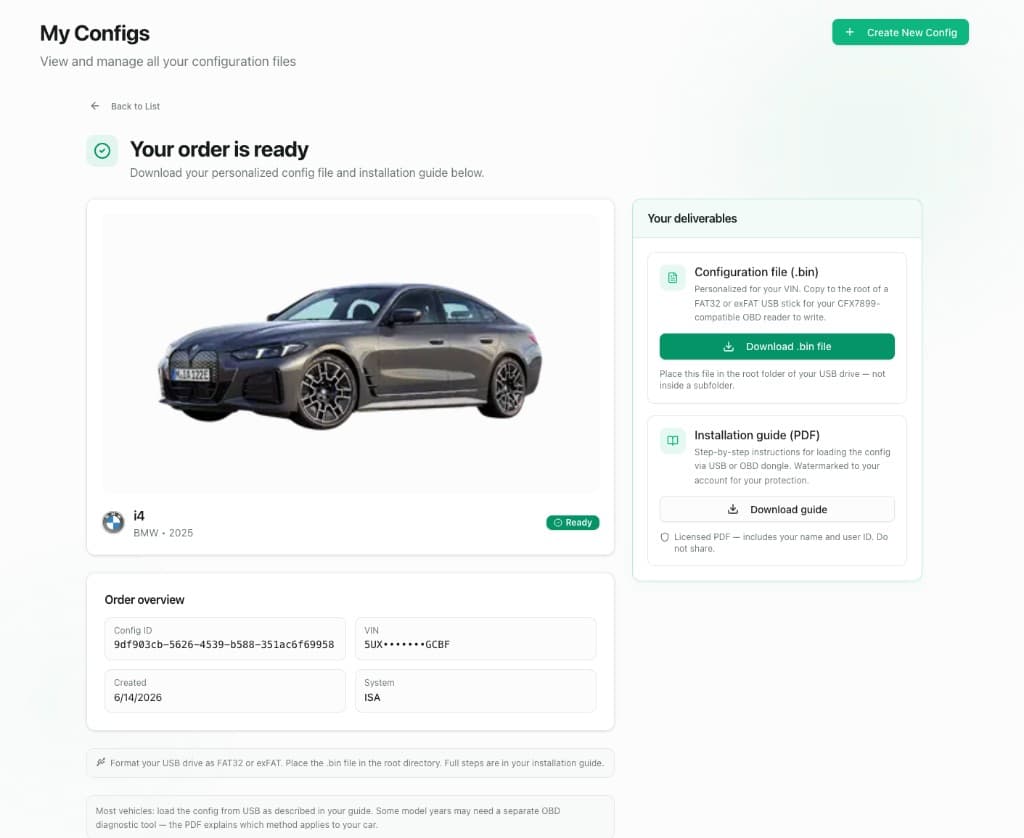
Download your .bin file and guide
When status changes to Ready, download the configuration file (.bin) personalized for your VIN and the watermarked installation guide (PDF). Keep both — the PDF explains any model-specific USB port or OBD steps for your Xpeng G9.
Tip: Place the .bin file in the root of your USB drive — not inside a subfolder.
Part 2 — Load the file and plug in
Prepare a FAT32 USB stick, copy your config to the root folder, then insert it in your Xpeng G9 to silence ISA beeps for every drive.
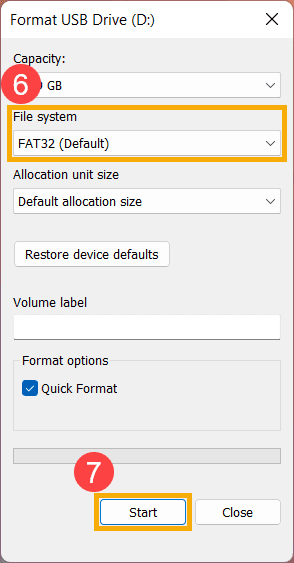
Format your USB stick as FAT32
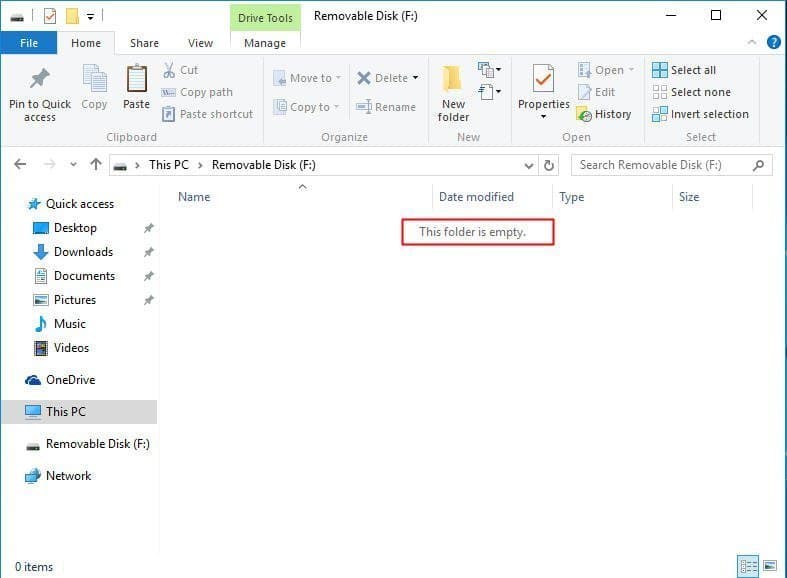
Insert a USB drive (1 GB or larger) into your computer. Format it as FAT32 (or exFAT if your Xpeng G9 guide specifies). Use Quick Format and make sure the drive is empty before copying.
Tip: Most vehicles require FAT32. If formatting fails on large drives, use a smaller 8–32 GB stick.
Copy the .bin file to the USB root
Drag your downloaded configuration file onto the empty USB drive so it sits directly in the top-level folder — not inside Music, Documents, or any other subfolder.
Tip: Only the .bin file needs to be on the stick for USB loading. Leave the PDF on your phone or laptop for reference.
Take the USB stick to your Xpeng G9
Eject the drive safely from your computer and bring it to your vehicle. Most Xpeng G9 models have a USB port in the center console or glove area — your installation guide shows the exact location for your trim.
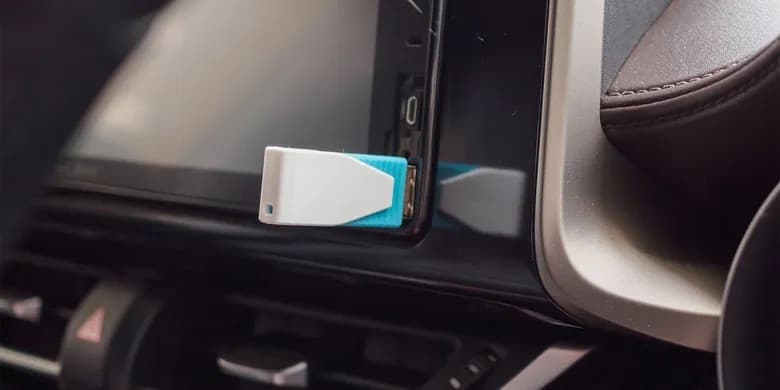
Tip: Any standard USB-A stick works. Use a low-profile drive if space around the port is tight.
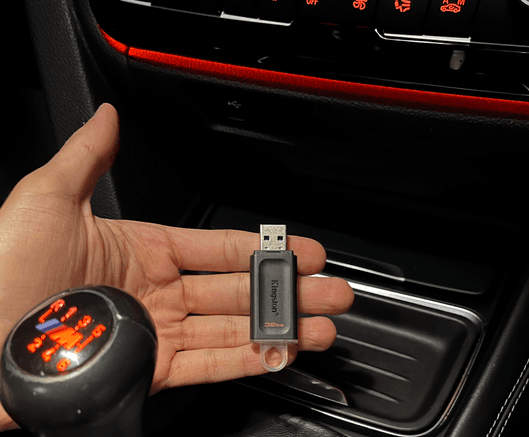
Plug in and enjoy silent driving
Insert the USB into your Xpeng G9's data port. The vehicle detects and loads the configuration automatically — no menus, prompts, or dealer visit. ISA warning beeps stay off while the stick is inserted; visual speed limits remain on your display.
Tip: Test on a short drive above the limit — you should see visual warnings but hear no ISA chimes. Unplug the USB anytime to restore factory sounds.
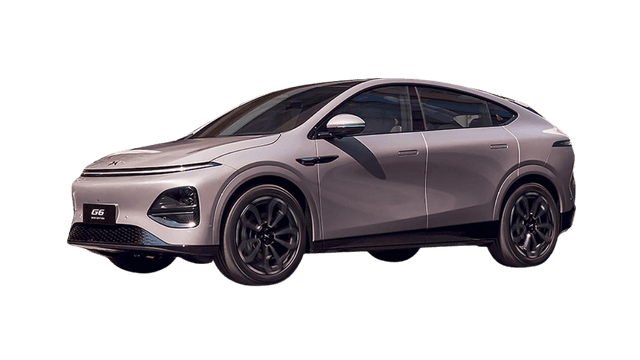
Other Xpeng Models
Intelligent Speed Assist (ISA)
Start Configuration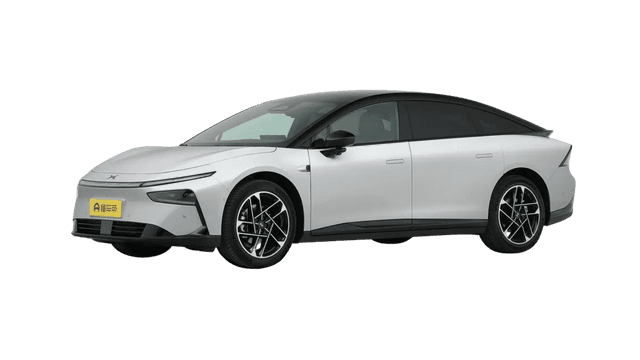
Intelligent Speed Assist (ISA)
Start ConfigurationAlternative Solutions
Some Xpeng G9 owners have reported that manual deactivation is possible with a difficulty level of: Moderate. This typically involves navigating through vehicle settings menus.
Important Note
Manual deactivation methods may reset after vehicle restarts, require technical knowledge, and may not be available in all model years. Our USB config file solution provides a permanent, VIN-specific fix that persists across all drive cycles.
Join thousands of Xpeng G9 owners who have permanently disabled annoying ISA sounds. Get your free, VIN-specific config file today.